
The Community Data Solutions CRM system allows users with the manager role to manage the users of the database and their permissions.
Managers are able to create new users, change passwords if required, restrict or provide access to features/records and deactivate users.
Managers are able to:
– Edit User Permissions – restrict or provide access to features/records, deactivate users
– Reset User Password – change passwords if required
– Create New User – create new users
– Duplicate an Existing User – create a new user based on an existing one
– Create a Light User – create light users or change a user to a light user
Instructions
Step 1. Log into your CRM database (refer to Logging On for further information).
Tip: Only users with the Manager role have access to manage
users.
Step 2. On the left-hand side of the Home screen, click the Manage Users link.
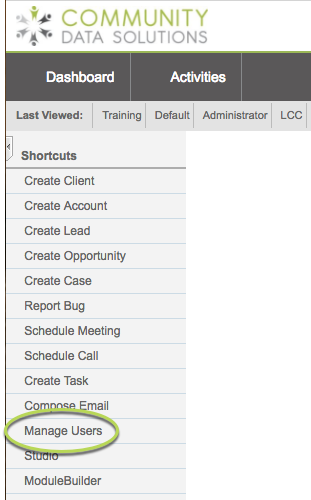
You will be taken to the Users List page – current system users will be displayed.
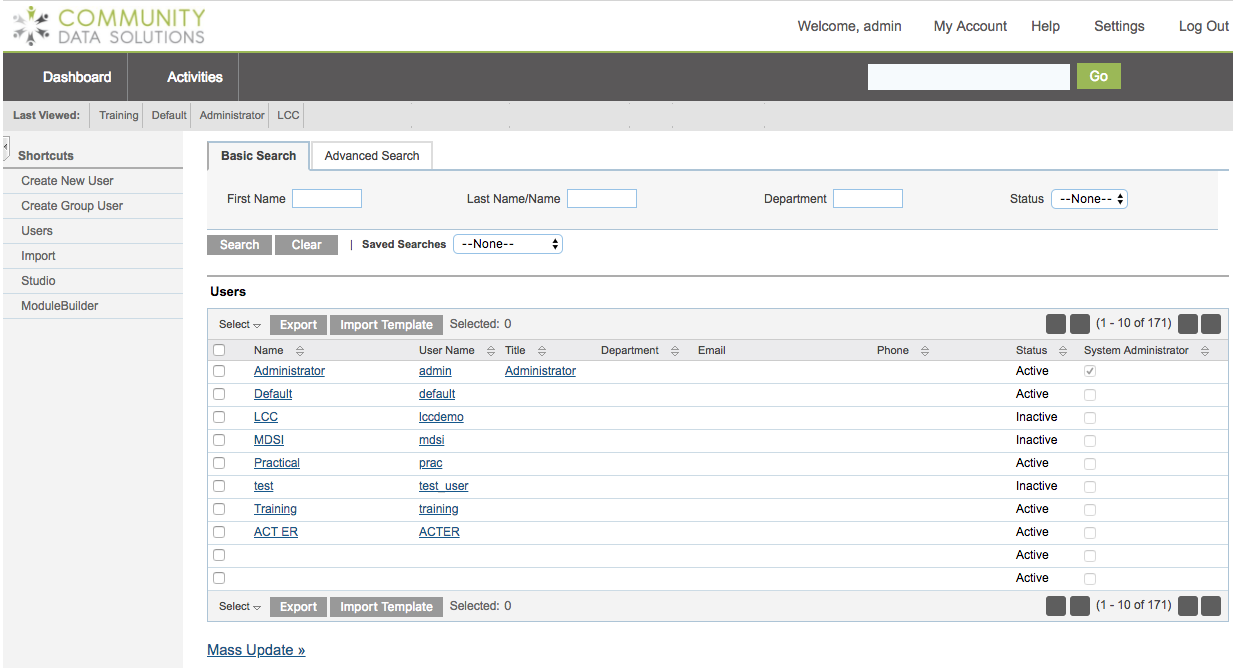
Step 3. You can now Search for the User you want to add a Role (permissions)
Type in the search criteria by entering their first and/or last name in the search fields.
Then Click on Search or hit enter/return on your keyboard
Tip:
Need a refresher on how to use search refer to the Search article in the Knowledge base.
Tip:
If you need to create a new user, refer to the Creating a New User article for instructions.
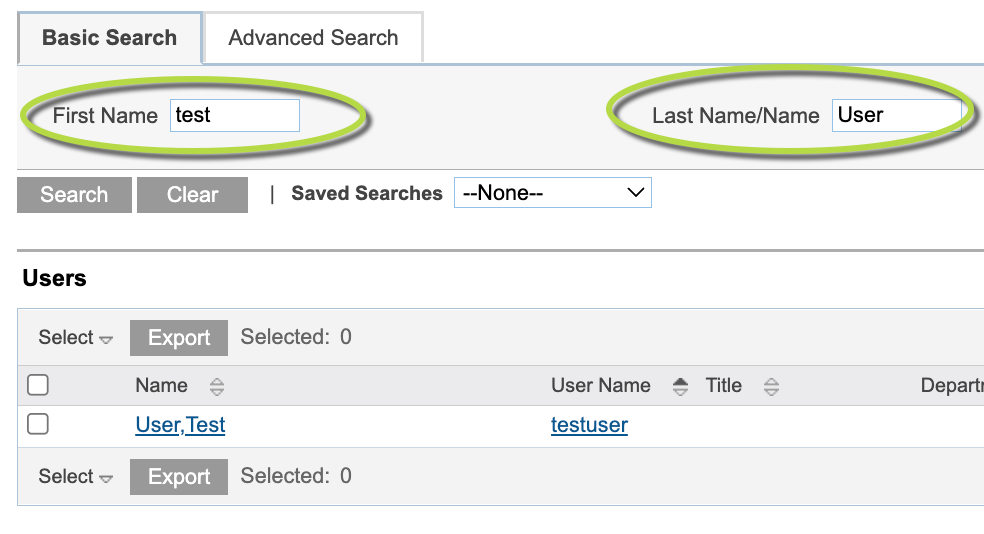
All users that meet the entered criteria are returned
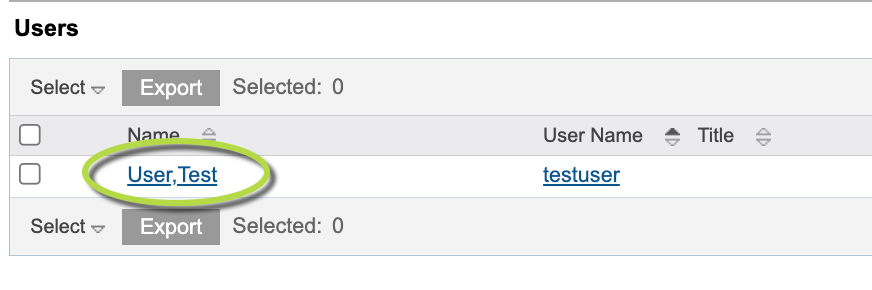
Step 4. To display the User
Click on the Username in the search results
Step 5. The user is displayed. At the top of the screen, choose the Duplicate button
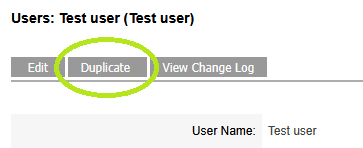
This will copy some information from the original user record, along with their Roles.
Ensure that you update the necessary information:
- User
- Enter a User Name as required (usually first initial last name – e.g. jsmith)
- Note – Status must be set to Active for the user to log in
- Change Password
- Enter a password for the new user – they should change it once logged in
- Email Options
- Enter the user’s email address
- User Information
- Enter the remaining user information as required
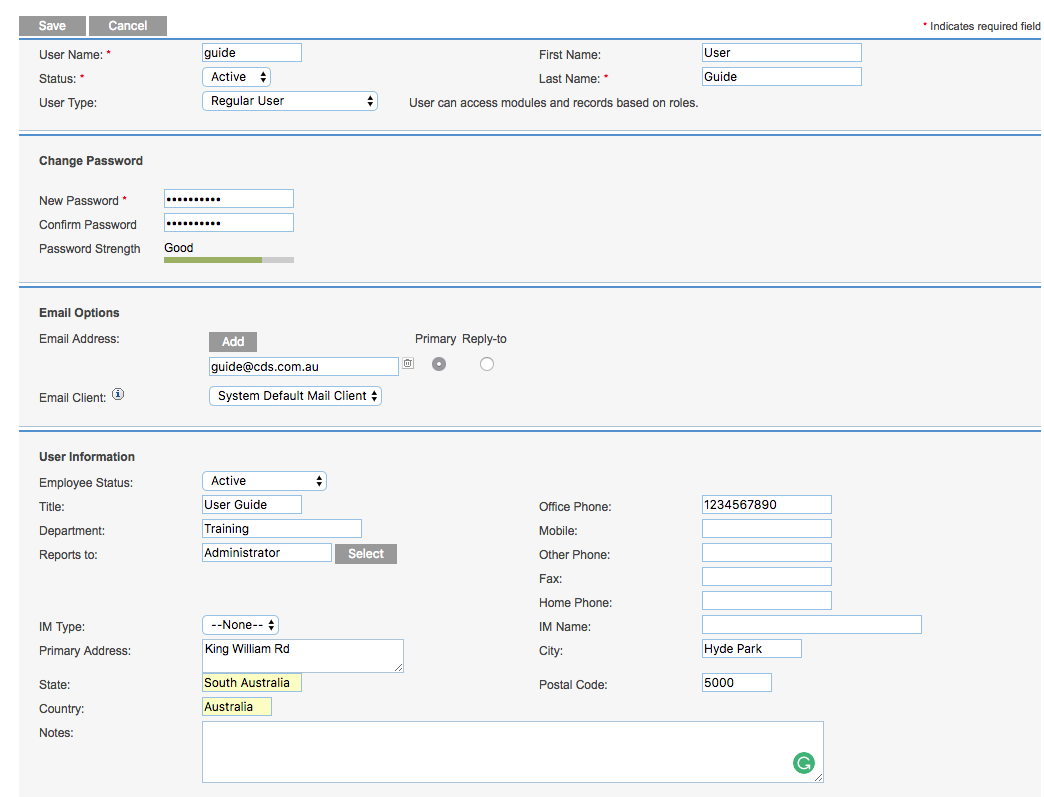
Do not edit any information in the following panels:
- User Settings
- Layout Options
- Locale Settings
- Calendar Options
Step 6. Scroll to the bottom of the page and click Save
The user is created successfully with the same roles assigned as the original user.
Step 7. On the left in the Sub-Panel, Click on Roles
Tip:
You can also scroll down the user screen to get to roles at the bottom of the screen.
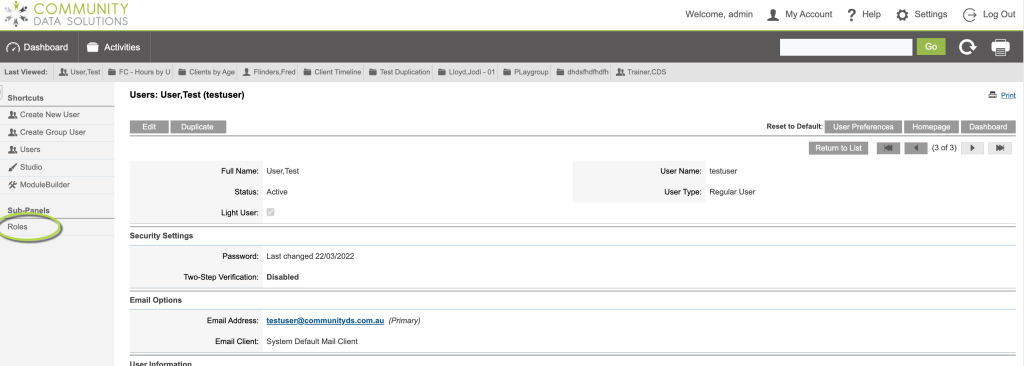
You can then remove or add roles for this new user as required, however every user must have the Basic role.
Further Information
For information on editing the permissions for a new or existing user, refer to the Editing User Permissions article.